
How to Unpin Someone on Snapchat – ( Step-by-Step Guide 2026 )
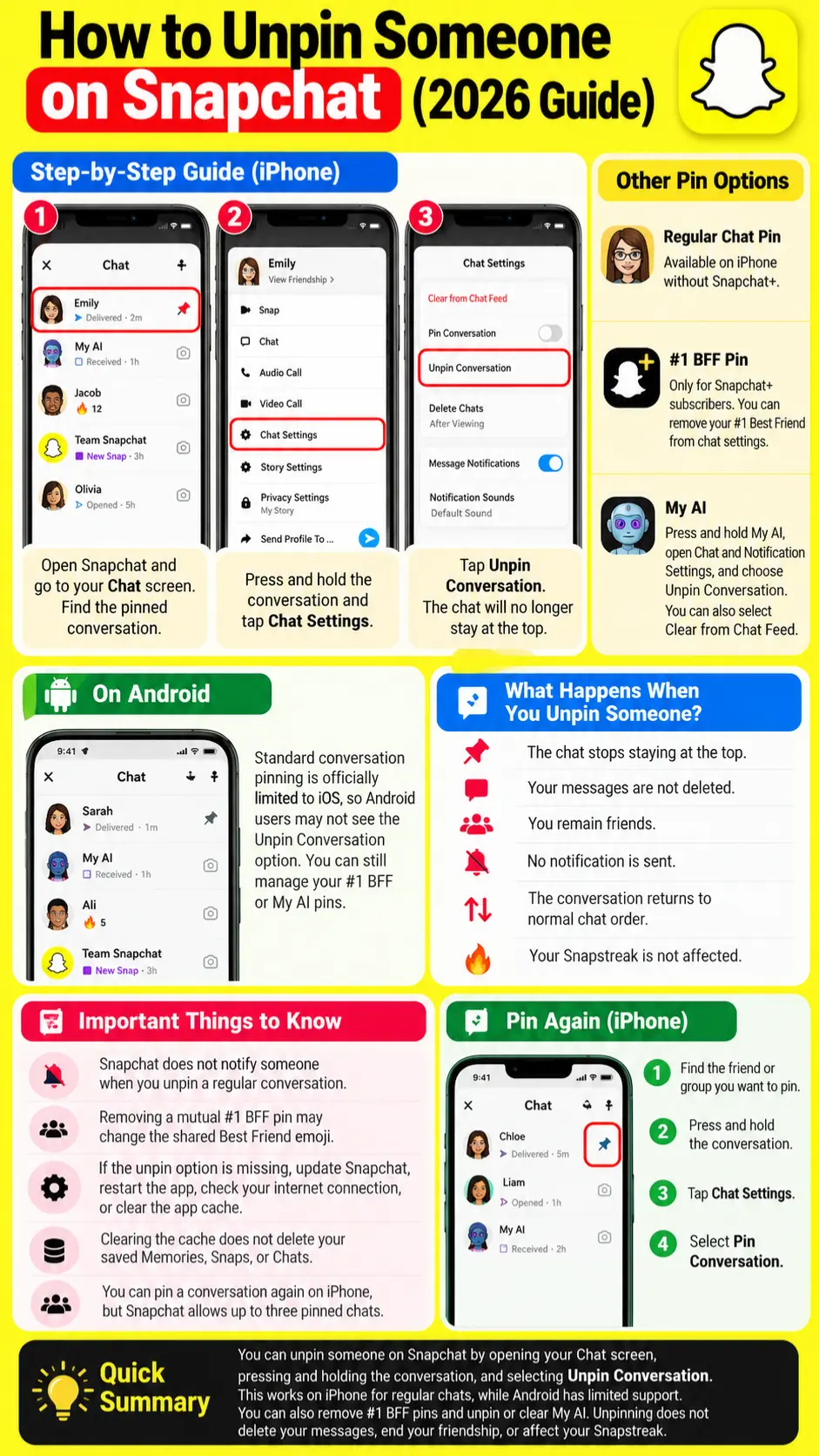
To unpin someone on Snapchat, open your Chat screen, press and hold the pinned conversation, tap Chat Settings, and select Unpin Conversation. The chat will no longer stay at the top of your list. You can still send messages and Snaps to that person, and Snapchat won’t notify them that you unpinned their conversation.
However, Snapchat has different pinning features. You can pin a regular conversation, choose a #1 Best Friend with Snapchat+, or pin My AI to your Chat screen. This 2026 guide explains how to unpin each one, what works on iPhone and Android, and what to do when the unpin option is missing.
How to Unpin Someone on Snapchat on iPhone
Snapchat lets iPhone users pin up to three conversations at the top of their Chat screen. If you no longer want someone to stay there, follow these steps.
- Open Snapchat: Launch the app on your iPhone.
- Go to Chats: Tap the Chat icon at the bottom or swipe right from the Camera screen.
- Find the pinned conversation: Look near the top of your Chat list for the friend or group you want to unpin.
- Press and hold: Touch and hold the conversation until a menu appears.
- Open Chat Settings: Select Chat Settings. Some app versions may display Chat and Notification Settings.
- Tap Unpin Conversation: Choose Unpin Conversation to remove the chat from its pinned position.
That’s it! The conversation is no longer pinned. It will appear in your regular Chat list instead of staying at the top. You don’t need to delete the conversation, remove the friend, or change your privacy settings.
Quick tip: If you have three conversations pinned, unpinning one leaves space for another. You can also follow the same steps to unpin a group chat.
How to Unpin Someone on Snapchat Without Snapchat Plus
You don’t need Snapchat+ to unpin a regular conversation on an iPhone. The standard conversation pinning feature is available without a paid subscription.
Simply open Chats > Press and hold the pinned conversation > Chat Settings > Unpin Conversation.
There is one important difference:
- Regular conversation pin: Keeps a chat at the top of your list and doesn’t require Snapchat+.
- #1 Best Friend pin: Lets Snapchat+ subscribers choose one friend as their #1 BFF.
If you only want to remove a chat from the top of your screen, you don’t need to purchase Snapchat+.
How to Unpin Someone on Snapchat on Android
If you’re using an Android phone, you might notice that the regular Unpin Conversation option is missing. According to Snapchat’s official support guide, standard conversation pinning is available only on iOS as of October 2026. This means Android users may not have the same controls found on an iPhone.
If you’re trying to unpin someone on Android:
The #1 Best Friend feature and My AI have their own controls, which we’ll cover below.
How to Unpin Your #1 BFF on Snapchat Plus
Snapchat+ subscribers can choose one friend as their #1 Best Friend Forever (BFF). This is different from pinning a regular conversation.
If you previously selected someone as your #1 BFF and want to remove that choice, follow these steps:
- Open Snapchat and go to the Chat screen.
- Find the friend you pinned as your #1 BFF.
- Press and hold their conversation to open the menu.
- Look for Pinned as your #1 BFF.
- Tap that option to remove the selection or checkmark.
- Tap Done if Snapchat asks you to confirm.
The person should no longer be marked as your pinned #1 BFF. The wording may look slightly different depending on your Snapchat version.
Important: Snapchat+ allows you to pin only one #1 BFF at a time. Removing that pin doesn’t automatically remove the person from your normal Best Friends list, which is based on how often you communicate.
Snapchat also has a special emoji for friends who mutually pin each other as their #1 BFF. If you remove the pin, that shared indicator may change.
How to Unpin My AI on Snapchat
Is My AI stuck at the top of your Chat screen? Unlike regular pinned conversations, My AI has its own settings. Snapchat now provides official options to unpin My AI or remove its conversation from your Chat feed.
Unpin My AI Without Removing the Chat
- Open Snapchat and swipe right to your Chat screen.
- Press and hold My AI.
- Tap Chat and Notification Settings.
- Select Unpin Conversation.
My AI will no longer be fixed at the top of your Chat list.
Remove My AI From Your Chat Feed
If you want to clear My AI from your Chat list instead:
- Press and hold My AI.
- Open Chat and Notification Settings.
- Tap Clear from Chat Feed.
- Confirm your choice.
Remember: Unpinning and clearing a conversation are not the same thing. Clearing My AI removes its thread from your Chat feed, but it does not delete the information you previously shared with My AI.
What Happens When You Unpin Someone on Snapchat?
Unpinning someone changes how their conversation appears on your Chat screen. It doesn’t end your friendship or block communication.
Here’s what to expect:
| What changes? | What happens? |
| Pinned position | The chat stops staying at the top |
| Pin icon | The pinned indicator is removed |
| Messages | Existing chats are not deleted by unpinning |
| Friendship | The person remains your friend |
| Notifications | No separate unpin notification is sent |
| Chat order | The conversation returns to Snapchat’s normal sorting |
| Future pinning | You can pin the conversation again if supported |
Snapchat says the normal Chat list order depends on the people you communicate with most and those who have contacted you recently.
For example, if you unpin a friend you haven’t spoken to in a week, their conversation may move below your more active chats. But if you were just chatting with them, they could remain near the top.
Will Someone Know If You Unpin Them on Snapchat?
No, Snapchat doesn’t send someone a notification when you unpin their regular conversation. The other person can still message you, send Snaps, and view your content according to your existing privacy settings. Unpinning is different from blocking or removing a friend. You’re only changing your own Chat screen.
However, if you and another Snapchat+ subscriber had mutually pinned each other as #1 BFFs, removing that pin may change your shared Best Friend Emoji. This means someone might notice an emoji change, even though Snapchat doesn’t send a direct unpin alert.
Why Can’t I Unpin Someone on Snapchat?
Sometimes the unpin option doesn’t appear, even after you press and hold a conversation. Here are the most likely reasons and what you can do.
1. You’re Using an Android Phone
Snapchat’s standard conversation pinning feature is officially documented for iOS. If you’re on Android, the missing option may be a feature limitation rather than an app problem.
What to do: Check whether you’re trying to manage a regular conversation, your Snapchat+ BFF, or My AI.
2. You’re Looking in the Wrong Menu
Regular conversation pins and #1 BFF pins use different controls.
What to do: For a regular pinned chat, open Chat Settings. For a Snapchat+ BFF, look for the Pinned as your #1 BFF option after pressing and holding the friend.
3. Snapchat Needs an Update
An outdated app version can sometimes cause menus to behave differently or stop working as expected.
What to do: Open the App Store or Google Play Store, search for Snapchat, and install any available update. Then close and reopen the app.
4. You’re Trying to Unpin My AI
My AI uses a separate menu in Snapchat, so you might not find the correct setting by following older video tutorials.
What to do: Press and hold My AI, open Chat and Notification Settings, and choose Unpin Conversation.
5. The App Is Not Responding
If the unpin option should be available but nothing happens when you tap it, the app may have a temporary problem.
Try these fixes:
Snapchat says clearing the app cache won’t delete your saved Memories, Snaps, or Chats.
How to Pin Someone Again on Snapchat
Accidentally unpinned a friend? You can pin the conversation again on a supported iPhone.
- Open Snapchat and go to the Chat screen.
- Find the friend or group you want to pin.
- Press and hold the conversation.
- Select Chat Settings.
- Tap Pin Conversation.
The chat will return to the pinned area at the top. Remember that Snapchat allows up to three regular pinned conversations. If you’ve already reached the limit, unpin another conversation before adding a new one.
Frequently Asked Questions
Can you unpin someone on Snapchat without them knowing?
Yes. Snapchat doesn’t send a separate notification when you unpin a regular conversation. Your friend can continue sending messages and Snaps normally.
Can you unpin someone without Snapchat Plus?
Yes, on iPhone. Regular conversation pinning is a free feature. Snapchat+ is needed for the separate #1 BFF pinning feature.
Can you unpin someone on Snapchat without deleting the chat?
Yes. Unpinning simply removes a conversation from its fixed position at the top of your Chat list. It doesn’t delete the conversation or your saved messages.
Can you unpin multiple people at once?
Snapchat’s regular unpinning instructions work one conversation at a time. If you have several pinned chats, repeat the process for each one.
Does unpinning someone affect your Snapstreak?
No. Unpinning doesn’t directly reset or end a Snapstreak. Your streak depends on meeting Snapchat’s Snap exchange requirements, not where the conversation appears in your Chat list.
Does unpinning someone remove them from your Best Friends list?
No. Snapchat updates your normal Best Friends list based on your Snap and Chat activity. Removing a regular conversation pin doesn’t manually remove someone from that list.
Can I unpin a Snapchat group conversation?
Yes. On a supported iPhone, press and hold the pinned group, open Chat Settings, and tap Unpin Conversation.
Can I pin someone again after unpinning them?
Yes. You can pin a regular conversation again whenever you want, as long as your device supports the feature and you haven’t reached the three-conversation limit.
Final Thoughts
Unpinning someone on Snapchat is easy once you know which type of pin you’re using. On iPhone, you can remove a regular pinned chat through Chat Settings without deleting messages or notifying the other person. Snapchat+ BFF pins and My AI use different controls, while standard conversation pinning remains officially limited to iOS.
If an option is missing, check your device and pin type before trying other fixes. Whether you’re making room for another conversation or removing an old pin, you can manage your Chat list without changing your friendships.