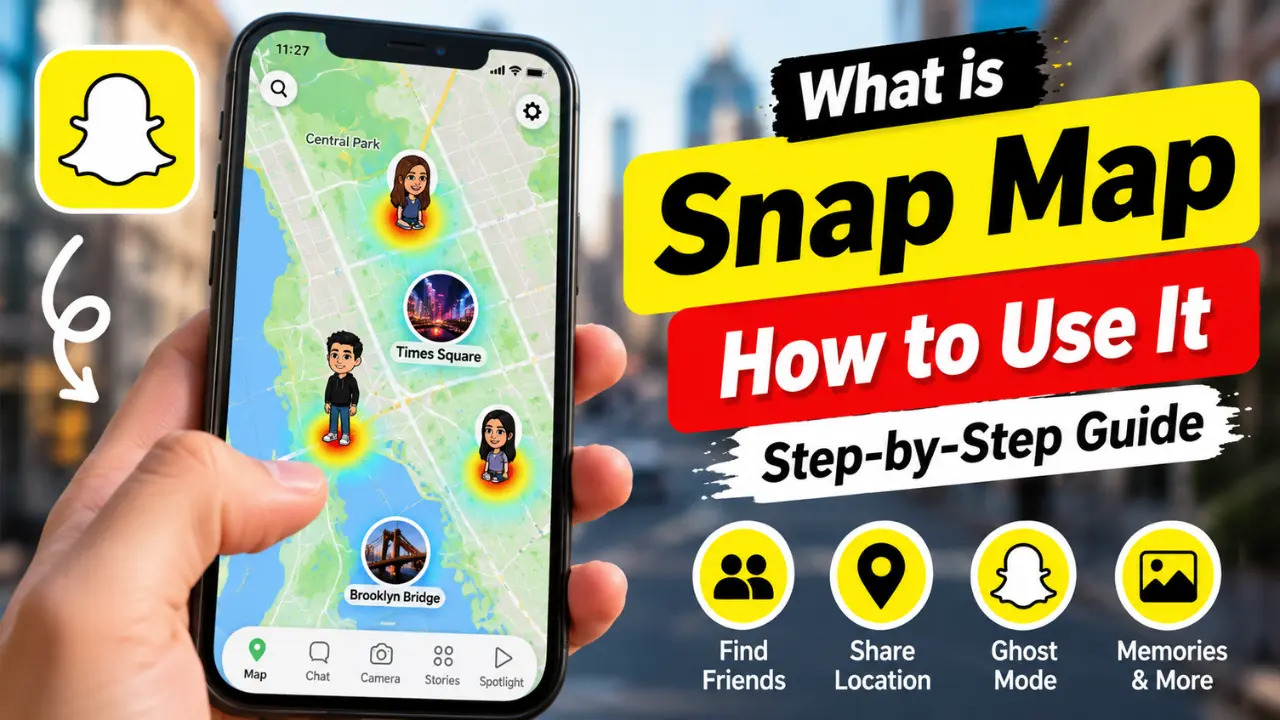
What is Snap Map on Snapchat? Step-by-Step Guide
Snapchat is full of fun features, but Snap Map is one that many people don’t fully understand. Some users think it only shows their location, while others worry that anyone can see where they are. It can also be confusing when you see friends on the map, colorful hotspots, or your own Bitmoji in different places.
The good news is that Snap Map on Snapchat gives you full control over your location. In this guide, you’ll learn what Snap Map is, how it works, how to use it step by step, and how to change your privacy settings. You’ll also discover features like Ghost Mode, Live Location, Memories, and Map Stories so you can use Snap Map safely and get the most out of it.
Quick Answer
Snap Map is Snapchat’s interactive map that lets users share their location with selected friends, discover public Stories nearby, view location-based Memories, and use Live Location for trusted contacts. You control who can see your location through privacy settings or Ghost Mode.
Snap Map on Snapchat at a Glance
| Feature | Details |
|---|---|
| Available On | Android & iPhone |
| Purpose | Share location and discover nearby content |
| Shows Friends | Yes (if they share location) |
| Public Stories | Yes |
| Live Location | Yes |
| Memories Map | Yes |
| Privacy Controls | Friends, Selected Friends, Ghost Mode |
| Requires GPS | Yes |
| Web Version | Available for viewing public content |
What Is Snap Map?
Snap Map is an interactive location feature inside Snapchat that displays your Bitmoji on a world map. When you choose to share your location, selected friends can see your approximate location whenever Snapchat updates it.
At the same time, you can:
- Find friends on the map
- Watch public Stories nearby
- Discover events around the world
- View your location-based Memories
- Share your own public Stories
- Use Live Location for temporary tracking
Unlike traditional GPS apps, Snap Map focuses on social interaction instead of navigation.
How Does Snap Map Work?
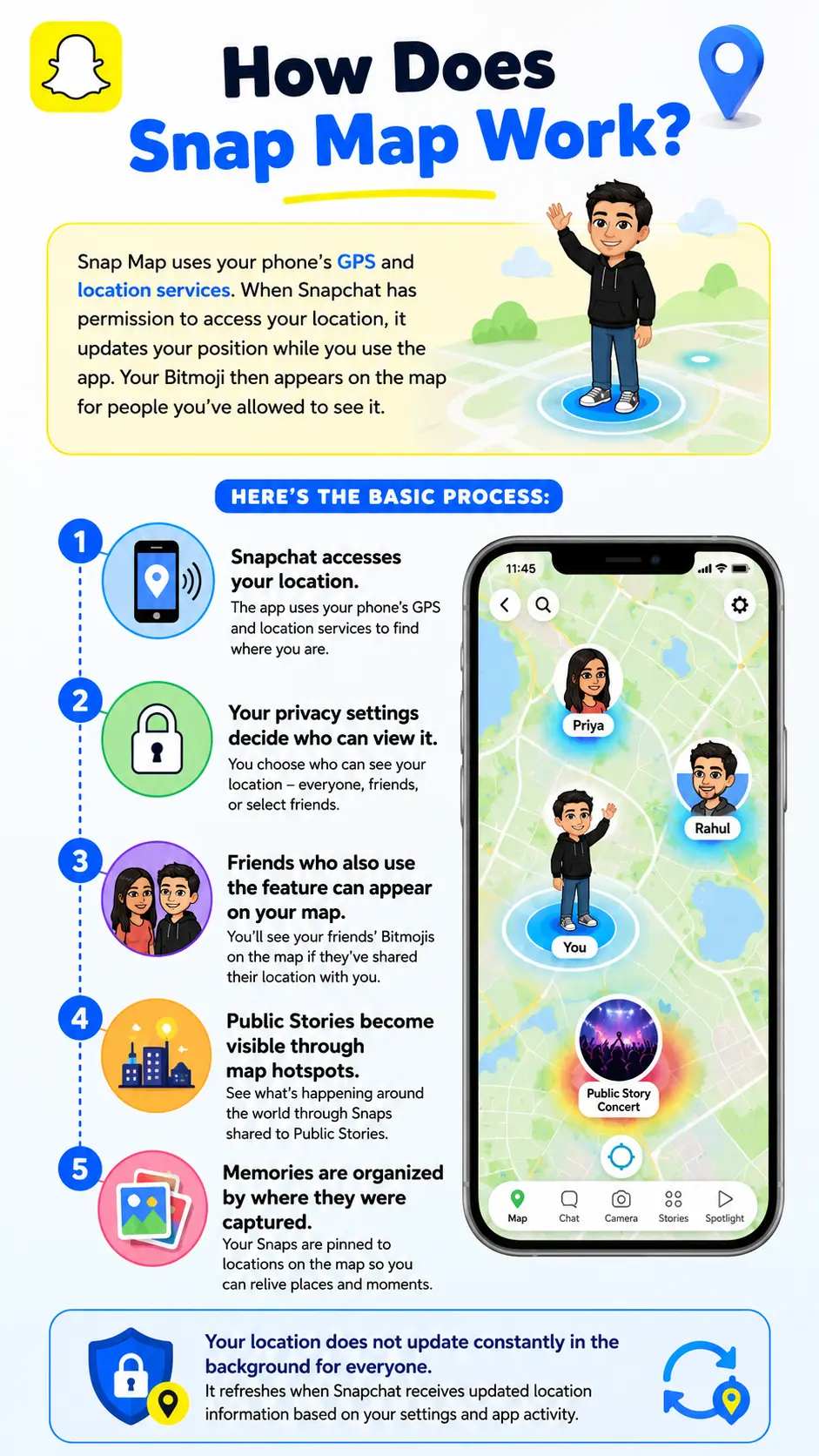
Snap Map on Snapchat uses your phone’s GPS and location services. When Snapchat has permission to access your location, it updates your position while you use the app. Your Bitmoji then appears on the map for people you’ve allowed to see it.
Here’s the basic process:
- Snapchat accesses your location.
- Your privacy settings decide who can view it.
- Friends who also use the feature can appear on your map.
- Public Stories become visible through map hotspots.
- Memories are organized by where they were captured.
Your location does not update constantly in the background for everyone. It refreshes when Snapchat receives updated location information based on your settings and app activity.
How to Open Snap Map on Snapchat
Accessing the map takes only a few seconds.
On Android or iPhone
- Open Snapchat.
- Stay on the Camera screen.
- Tap the Map icon (or pinch the camera screen if your version supports it).
- Allow location permission if prompted.
- The map will load automatically.
If you’re opening it for the first time, Snapchat will ask who can see your location.
How to Use Snap Map
Once the map opens, several features become available.
Find Your Friends
Friends who share their location appear as Bitmojis.
Tap any Bitmoji to:
- View their profile
- Start chatting
- See recent activity (when available)
- Check shared Stories
Remember that friends using Ghost Mode won’t appear.
Search for a Friend
Looking for someone specific?
Simply:
- Tap the search icon.
- Enter their name.
- Select their profile.
If they share their location with you, Snapchat centers the map on them.
Discover Public Stories
- Colored areas on the map often represent public Stories.
- Tap a hotspot to watch photos and videos shared from that location.
- This is one of the easiest ways to explore concerts, sporting events, festivals, tourist attractions, and breaking local moments.
Understand the Heat Map
The Heat Map highlights areas where many public Snaps have been shared.
Blue Areas
- Lower activity
- Fewer public Snaps
Red Areas
- Higher activity
- More public Stories
- Popular events or busy locations
Red doesn’t always mean something important happened. It simply indicates more public Snap activity.
View Memories on the Map
Snap Map also organizes your saved Memories by location.
Open the Memories option inside Snap Map to:
- Revisit old trips
- Find vacation photos
- Browse saved videos
- Explore photos based on where you captured them
This feature makes it much easier to locate older content.
Snapchat Live Location Explained
Live Location is different from normal location sharing. Instead of showing your last known position, it shares your movement in real time with trusted friends for a limited period.
You can choose:
- 15 minutes
- 1 hour
- 8 hours
Many people use Live Location when:
- Meeting friends
- Traveling alone
- Walking home
- Sharing a trip with family
Only people you choose can see your Live Location.
How to Share Your Story on Snap Map
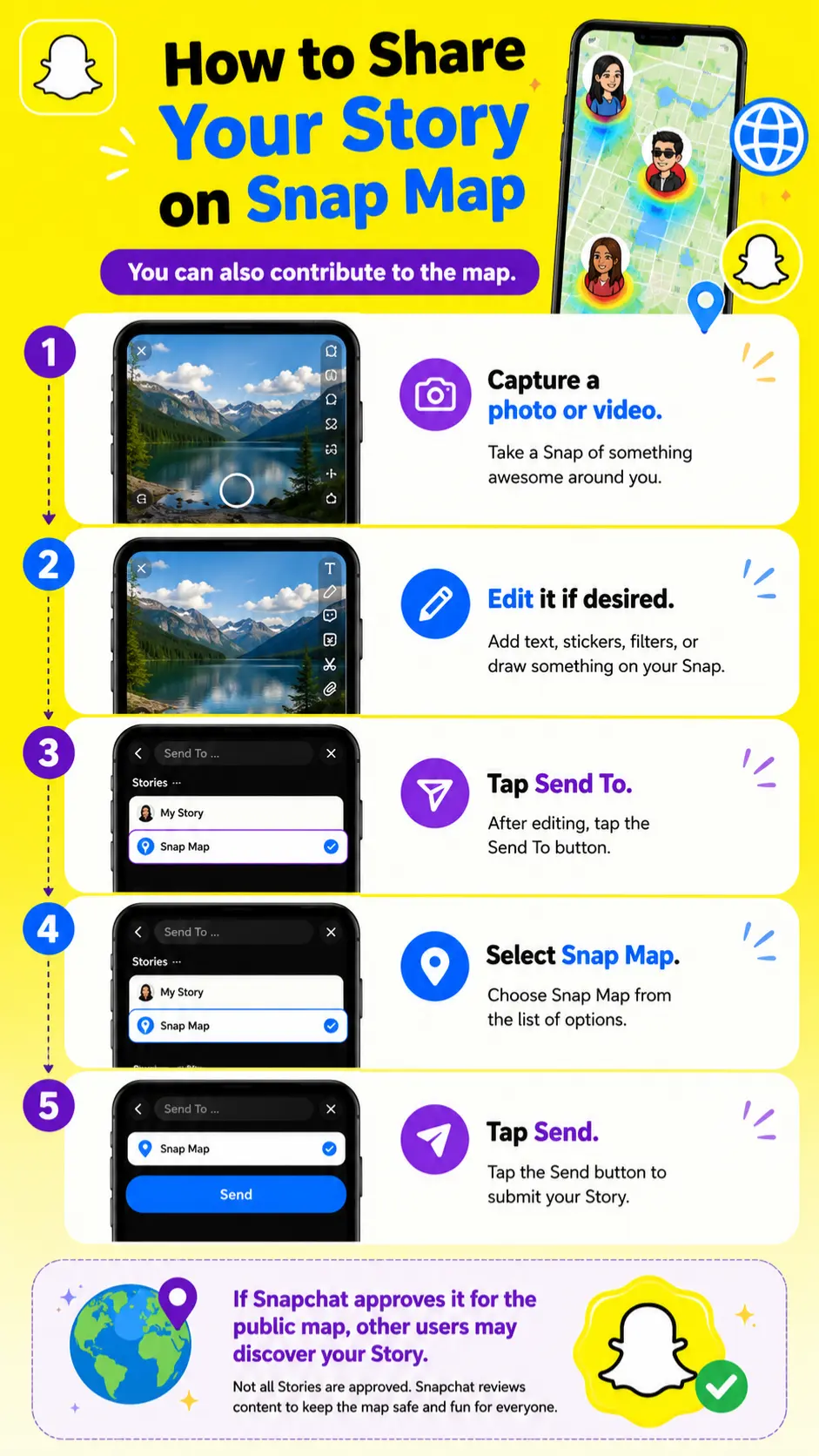
You can also contribute to the map.
Follow these steps:
- Capture a photo or video.
- Edit it if desired.
- Tap Send To.
- Select Snap Map.
- Tap Send.
If Snapchat approves it for the public map, other users may discover your Story.
How to Change Snap Map Privacy Settings
Privacy is one of the most important parts of the feature.
To adjust who sees your location:
- Open Snapchat.
- Tap your Bitmoji.
- Open Settings.
- Scroll to See My Location.
- Choose your preferred option.
Available choices include:
My Friends
- All your Snapchat friends can view your location.
My Friends, Except…
- Hide your location from selected friends.
Only These Friends
- Share only with specific people.
- This gives you complete control over your location sharing.
What Is Ghost Mode?
Ghost Mode hides your location completely in snapchat.
When enabled:
- Your Bitmoji disappears.
- Friends cannot track your location.
- You still can explore the map yourself.
You can enable it for:
- 3 hours
- 24 hours
- Until turned off
Ghost Mode is ideal when you want extra privacy in snapchat+.
How to Turn Off Location Completely
If you never want Snapchat to access your location:
- Enable Ghost Mode inside Snapchat.
- Turn off Snapchat’s location permission in your phone settings.
Doing both prevents Snapchat from updating your location.
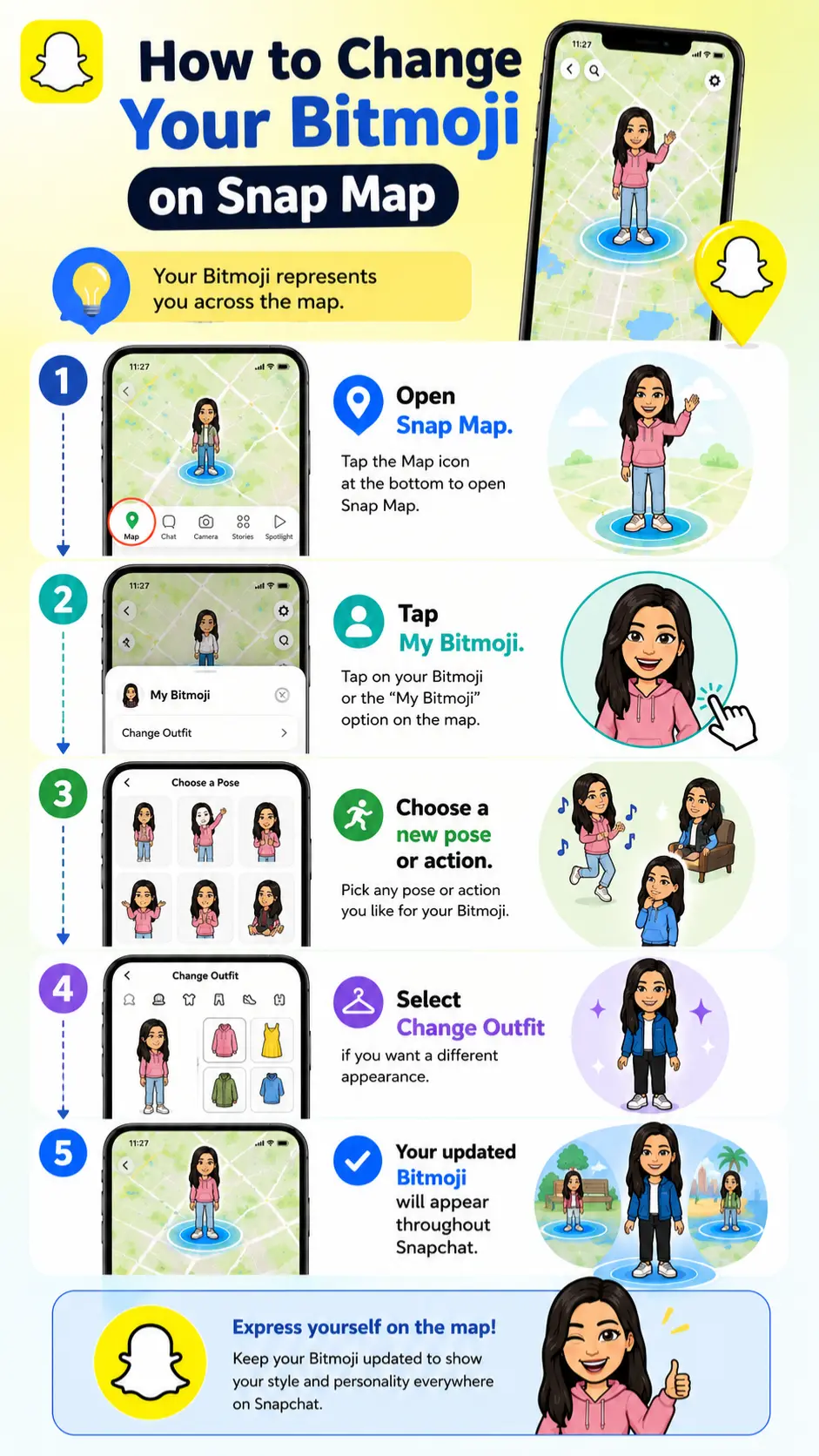
How to Change Your Bitmoji on Snap Map
Your Bitmoji represents you across the map.
To customize it:
- Open Snap Map.
- Tap My Bitmoji.
- Choose a new pose or action.
- Select Change Outfit if you want a different appearance.
Your updated Bitmoji will appear throughout Snapchat.
Can You Use Snap Map on a Computer?
Yes, Snapchat also offers a web version of its map. From a desktop browser, you can explore selected public Stories and discover popular places. However, some mobile-only features, such as friend location sharing and Live Location controls, are more limited on the web experience.
Helpful Privacy Tips Before Using Snap Map
Before turning on location sharing, keep these best practices in mind:
- Share your location only with trusted friends.
- Use Ghost Mode when traveling privately.
- Review your privacy settings regularly.
- Avoid sharing your location publicly unless necessary.
- Remember that removing location permission disables map features.
Taking a few minutes to review these settings helps protect your privacy.
Snap Map vs Live Location
Many users confuse these two features.
| Feature | Snap Map | Live Location |
|---|---|---|
| Shows Current Location | Yes | Yes |
| Real-Time Tracking | Limited | Yes |
| Time Limit | No | 15 min, 1 hr, 8 hrs |
| Privacy Controls | Yes | Yes |
| Best For | Daily sharing | Temporary tracking |
Frequently Asked Questions
Can everyone see my location on Snap Map?
No. You decide who can see your location through Snapchat’s privacy settings. You can share with all friends, selected friends, or no one by enabling Ghost Mode.
Why can’t I see my friend’s location?
Your friend may have Ghost Mode enabled, location permissions turned off, or may not be sharing their location with you.
Does Snap Map update in real time?
Your location updates as Snapchat receives new location information. Live Location provides continuous real-time sharing for the selected duration.
Can I use Snap Map without sharing my location?
Yes. Enable Ghost Mode to hide your location while still exploring the map and viewing public Stories.
What do the red and blue colors on Snap Map mean?
Blue indicates fewer public Snaps from an area. Red means many people have shared public Snaps there.
How does Snap Map know someone is sleeping?
Snapchat estimates activities using signals such as location and movement. The sleeping Bitmoji is an estimate, not confirmation that someone is actually asleep.
Are Snap Map Memories private?
Yes. Your Memories remain private unless you choose to share them.
Final Thoughts
Snap Map has evolved into one of Snapchat’s most useful features. Beyond showing where friends are, it helps users discover local Stories, revisit Memories, share Live Location with trusted contacts, and explore events happening around the world.
The best part is that you’re always in control. With flexible privacy settings, selected friend sharing, and Ghost Mode, you can decide exactly when and how your location appears. Whether you use Snap Map to stay connected with friends or simply discover what’s happening nearby, understanding its features and privacy options helps you use it safely and confidently.